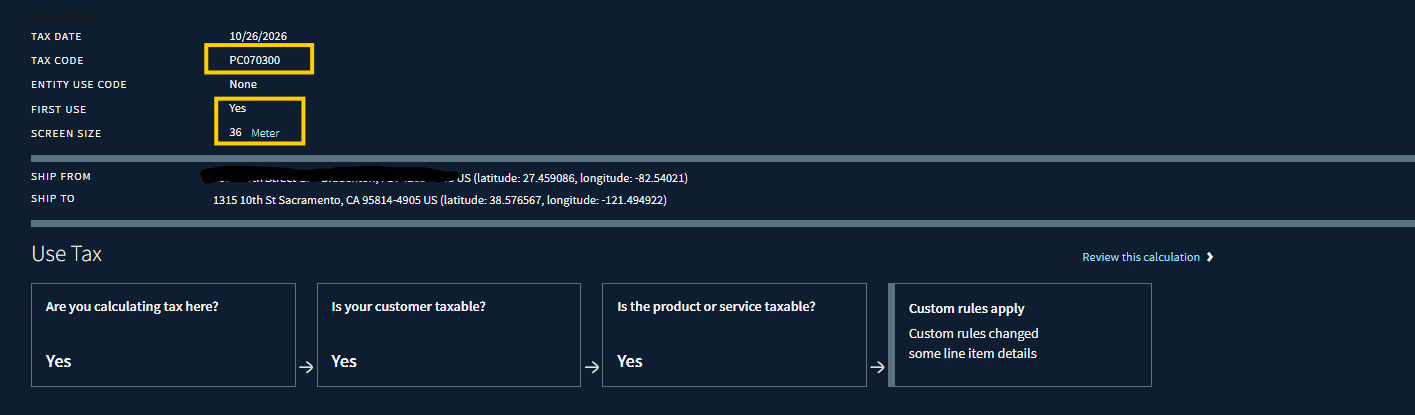
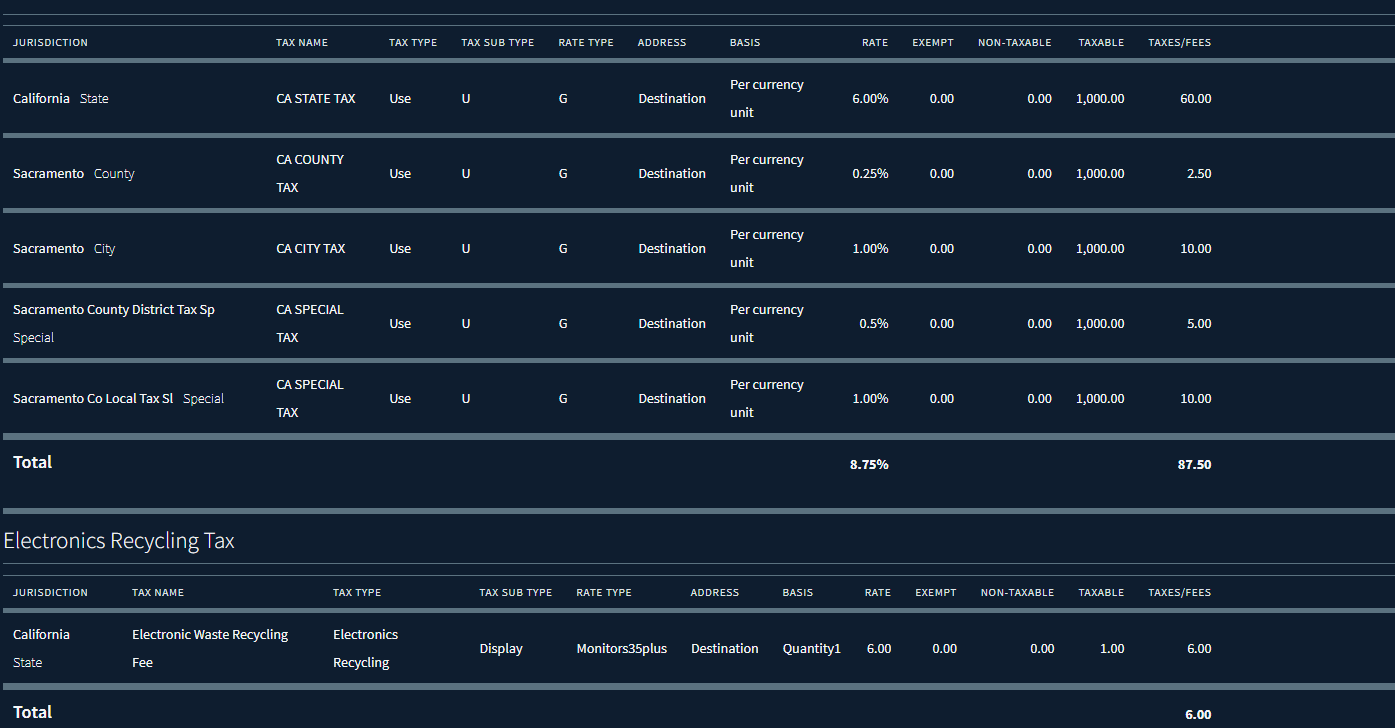
Avalara recently launched a new method to do eWaste Fees. Good news if you’re on BC or NetSuite SuiteTax version as these can actually pass with the connector, so some of the extra steps you don’t have to take.
First things first, what is this eWaste rule? According to the Avalara Website:
California’s covered electronic waste recycling fee (eWaste fee) applies to any new or refurbished electronic device containing a video display measuring more than four inches diagonally that’s identified as a “covered electronic device,” or CED. Rates for the eWaste fee are currently $4, $5, or $6, depending on the size of the screen. The fee is collected by the retailer at the time of purchase.
In general:
Screens 4-15”: $4 Fee
Screens 16-35”: $5 Fee
Screens 36”+: $6 Fee
Fees are fun, because it’s more or less non voter approved taxes. :) Also, if the customer is exempt because they are a reseller, this fee is also waived for that transaction.
How to Configure in Avalara (all platforms)
First, you must have Avalara enable this for you there are two of them, they are called: The Avalara Recycling and Disposal Sandbox (Content) and Recycling and Disposal Fee Tax or eWaste It is free but it is not standard out of the box. You also would likely need to have the Advanced Rules Entitlement (Partner-led) which makes this free. If you’re not partner lead, I have bad news, this normally cost something.
Next in the Settings » Where you Report Tax » United States » California
On the top section select the Recycling Fees. Now there are a couple different ones. For a full list: Here (for today Im not discussing the rest, but similar concept).
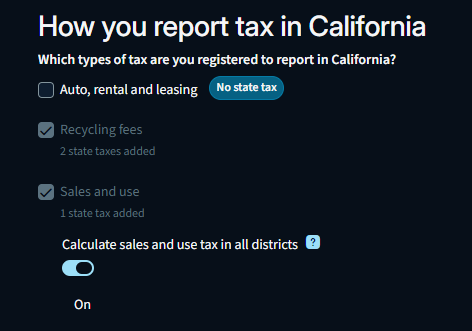
When that’s saved all will add, then you can delete the ones you don’t need, if not go to the local taxes add on, and filter to tax type Recycle, then you can select or unselect.
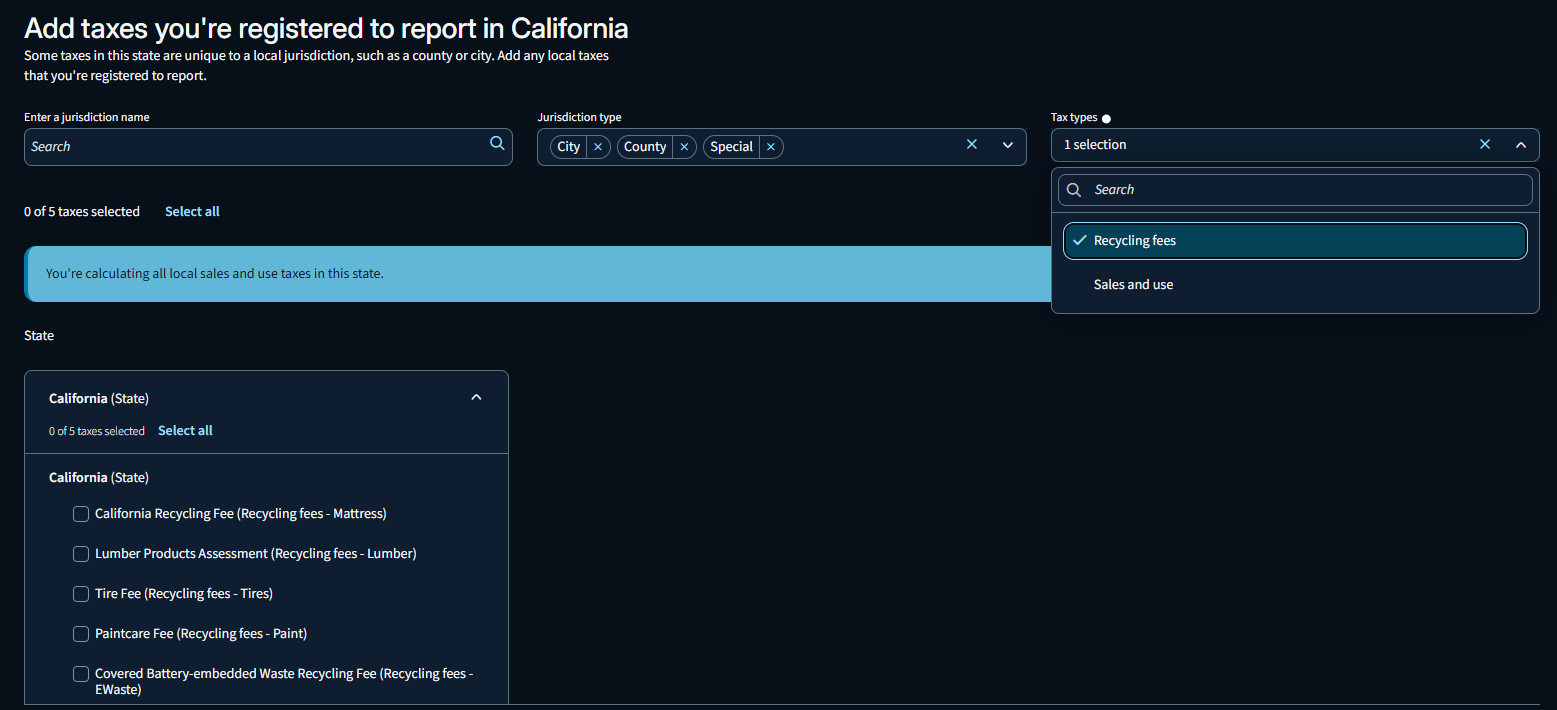
Under the Jurisdictions of CA you can then see which ones are active. Now it’s on!

Requirements
If you’re in BC or NetSuite you can pass attributes, if you’re not (or even if you are you can do the below method or what we’re doing is same concept just you don’t need the levels of tax codes)
Monitors must be set to Tax Code: PC070300
Attributes:
a. ScreenSize: provided
b. FirstUse: TRUE
Now since you can’t pass this info what are you going to do??? That’s where those Advanced Transaction Rules come into play.
You’re going to need to pass monitors with different start tax codes.
For mine I picked (I picked these because at least 2 of them I wasn’t otherwise using, and I assumed no one was selling under 4” screens):
4-15: PC070300
16-35: PC080300
36”+: PC080100
This will require three separate rules, all rules will be Find and Replace BEFORE calculation.
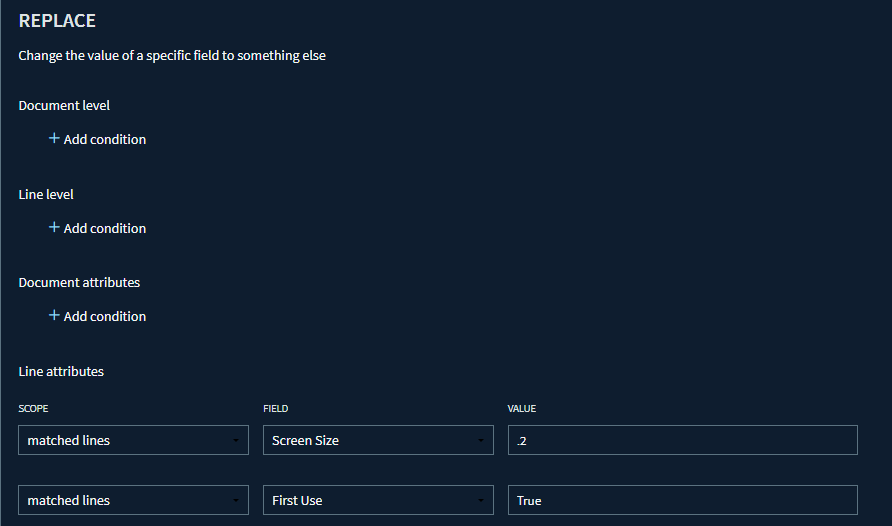
Rule 1: Screen >4" and <15"
One of Tax Code equals PC070300 then…
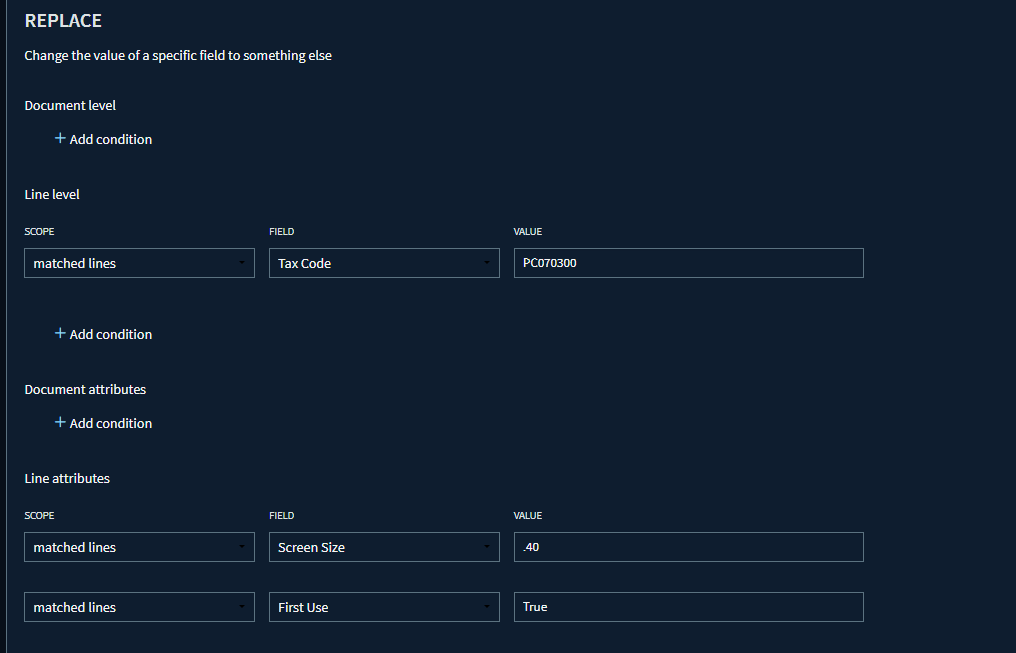
Rule 2: Screen >15" and <35"
One of Tax Code equals PC080300 then…
S
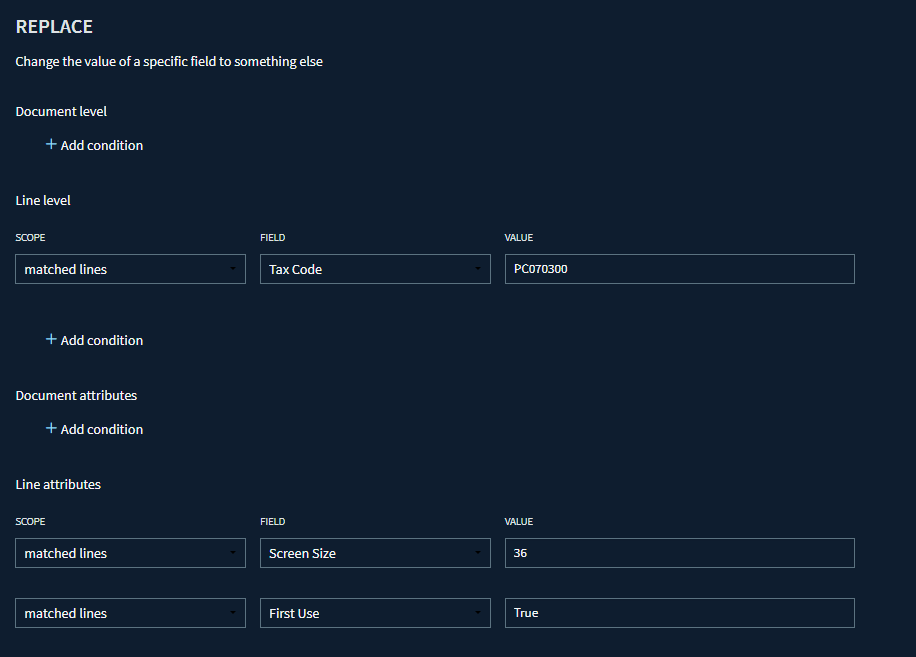
Rule 3: Screen over 35"
One of Tax Code equals PC080100 then…
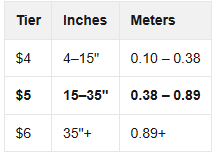
If you’re following along and you are BC/NetSuite and you’re like Andrea, why didn’t you do 10/20/36 wouldn’t that make sense? It would wouldn’t it…except they are 100% messing with us, the size needed is in Meters! Now for me I didn’t super care what the monitor size actually is, I just need it to be in the right tax rate type. So you need to use sizes as such:
What that gets you, if you send in a sales document it will convert it to a monitor tax code, and attach those attributes and then give you the proper fee and sales tax.